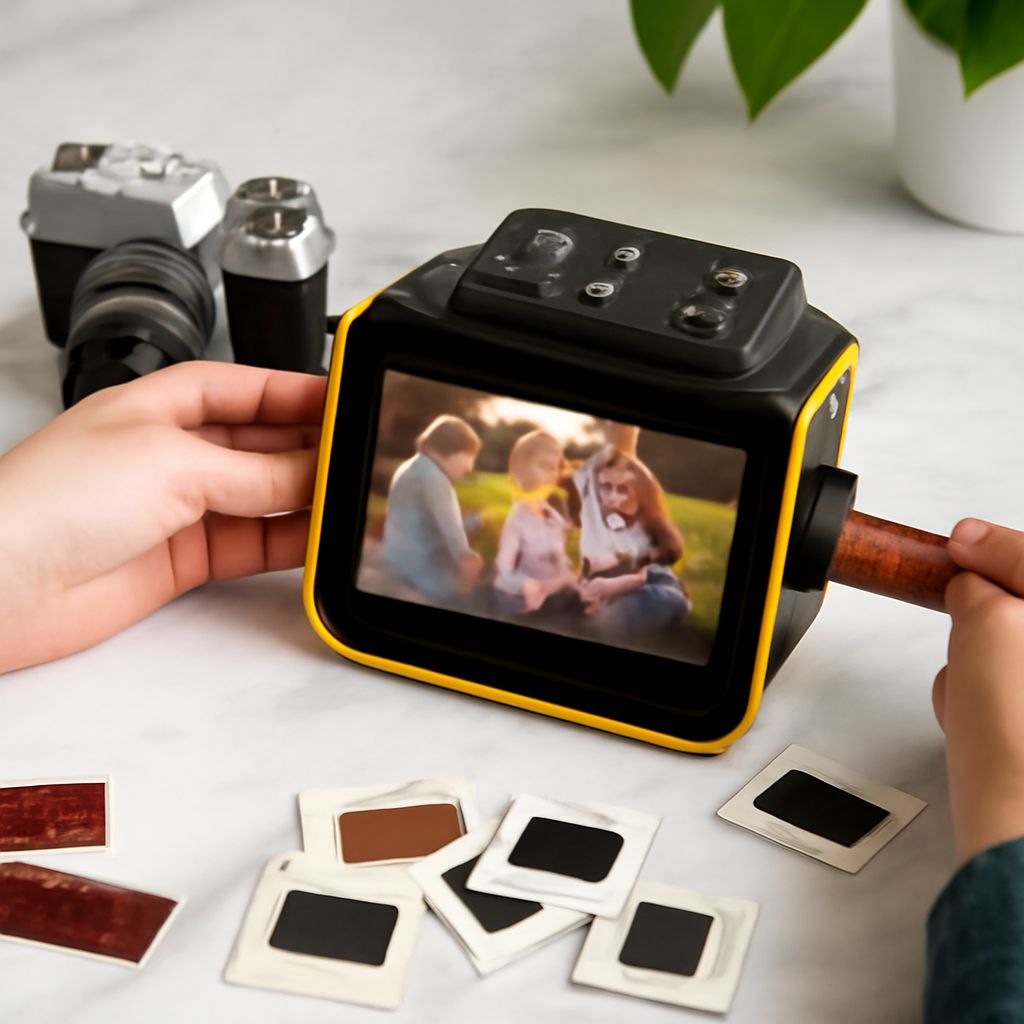
Digitizing old photo slides can preserve precious memories and make sharing them with others more accessible. A slide scanner is a powerful tool for converting these analog images into digital files. Here, you’ll find a comprehensive guide on using a slide scanner effectively, choosing the right one, and optimizing your digital conversion process.
Understanding Slide Scanners and Their Benefits
A slide scanner is a device specifically designed to scan photographic slides and negatives to produce high-quality digital images. Unlike traditional flatbed scanners, slide scanners are equipped to handle the unique dimensions and qualities of slides, resulting in sharper and more accurate reproductions.
Using a slide scanner offers several benefits. Firstly, it allows for the preservation of your images in a digital format, ensuring they don’t degrade over time. Secondly, digital images are easier to organize and share with family and friends. Finally, slide scanners often provide higher resolution scans than standard scanners, capturing more detail and color accuracy.
Choosing the Right Slide Scanner for Your Needs
When selecting a slide scanner, consider factors such as resolution, speed, and compatibility. Resolution is crucial for ensuring detailed images—look for a scanner with at least 2400 DPI (dots per inch) for high-quality results. Speed can vary between models, with some scanners processing slides quicker than others, an essential factor if you have a large collection.
Compatibility is another important consideration. Ensure the slide scanner is compatible with your computer’s operating system and has the necessary software to facilitate the scanning process. Some models may offer additional features, such as dust and scratch removal, enhancing your final digital images.
Step-by-Step Guide to Digitizing Slides
- Prepare Your Slides: Before scanning, clean your slides gently with a soft brush or lint-free cloth to remove dust and fingerprints that could affect image quality.
- Set Up the Scanner: Connect your slide scanner to your computer and install any required software or drivers. Follow the manufacturer’s instructions for setup.
- Configure Settings: Open the scanning software and configure the settings. Choose the appropriate resolution, typically 2400 DPI or higher, and select the file format, such as JPEG or TIFF, based on your preferences.
- Load the Slides: Place your slides into the scanner’s holder or tray, following the scanner’s instructions for slide placement.
- Begin Scanning: Start the scan process, ensuring each slide is scanned individually for optimal results. Monitor the images as they are scanned to ensure quality.
- Review and Save: After scanning, review the digital images for any errors or quality issues. Save the images to your preferred location on your computer, organizing them for easy access.
Tips for Optimizing Your Digital Conversion
To achieve the best results when using a slide scanner, consider the following tips:
- Calibrate Your Scanner: Regular calibration ensures accurate colors and overall image quality. Refer to the scanner’s manual for calibration instructions.
- Utilize Advanced Features: If your scanner has features like scratch and dust removal, make use of them to enhance image quality.
- Edit After Scanning: Use photo editing software to fine-tune your images post-scan. Adjust brightness, contrast, and color balance to improve the appearance of your digital files.
- Back Up Your Files: To avoid data loss, back up your digitized images to an external hard drive or cloud storage.
Common Issues and How to Resolve Them
While using a slide scanner is generally straightforward, you may encounter some common issues:
- Blurry Images: Blurry scans often result from a dirty scanner or slides. Clean both thoroughly before rescanning to resolve this issue.
- Color Discrepancies: If the digital images don’t match the original colors, recalibrate your scanner and ensure the correct settings are applied.
- Software Crashes: Ensure your scanner’s software is up to date. Check for compatibility issues between your computer’s operating system and the scanning software.
- Lines or Streaks: These can appear due to debris on the scanner sensor. Carefully clean the scanning area and try again.
By understanding how to use a slide scanner effectively, selecting the right model, and following best practices, you can successfully digitize your photo slides and preserve them for future generations.