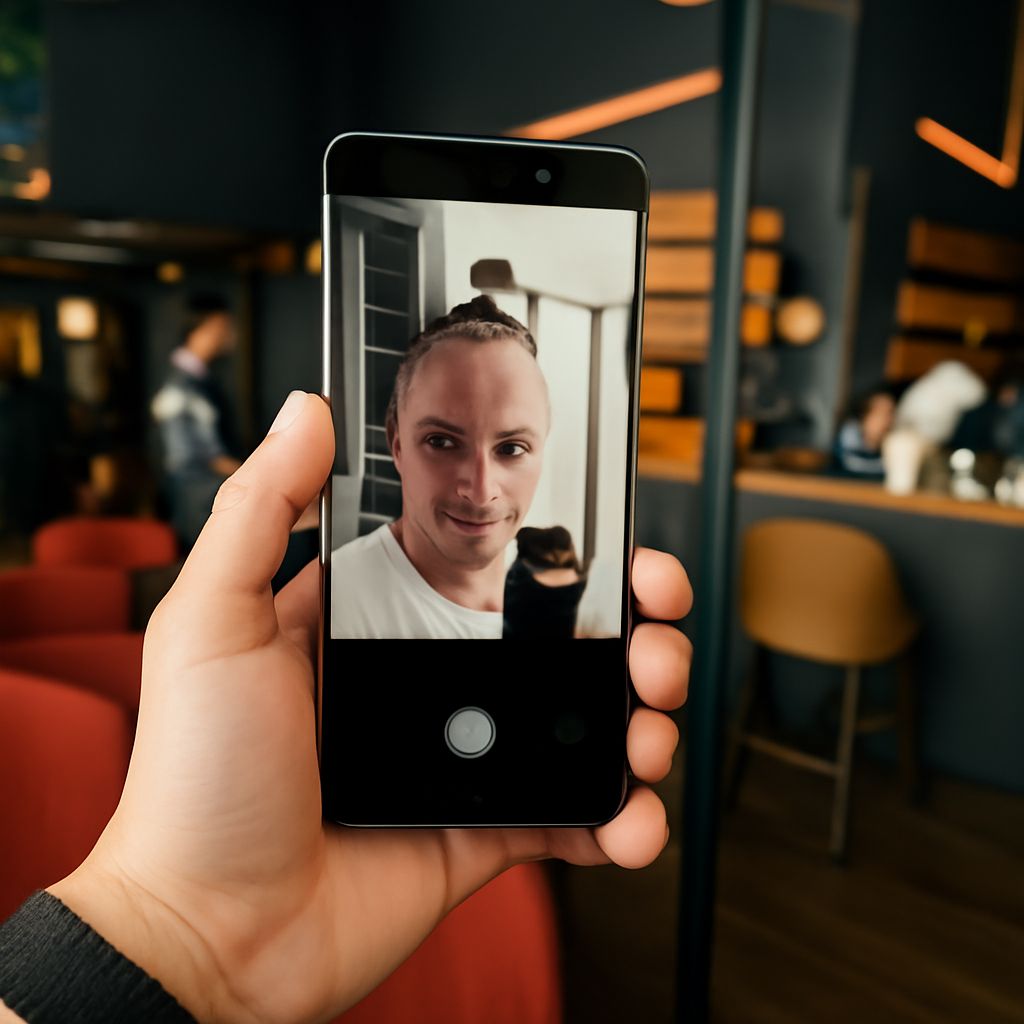
Are you wondering, “Can I use my phone as a webcam?” The answer is a resounding yes. Using your phone camera as a webcam can significantly enhance your video call quality. This guide walks you through the process with ease, eliminating the need for expensive external webcams.
Why Use Your Phone as a Webcam
With high-quality cameras, modern smartphones offer an excellent alternative to traditional webcams. They provide better resolution, improved low-light performance, and increased flexibility in positioning. Additionally, using your phone as a webcam can be a cost-effective solution, leveraging devices you already own.
Setting Up Your Phone as a Webcam
To transform your phone into a webcam, follow these steps:
- Choose a Reliable App: Install a trusted app on your phone that supports webcam functionality. Ensure it’s compatible with your device’s operating system.
- Install Companion Software: Download and install the corresponding software on your computer to pair with the phone app.
- Connect Devices: Use either a USB cable or ensure both devices are on the same Wi-Fi network for a wireless connection.
- Select as Webcam: In your video conferencing tool, choose your phone as the default webcam source.
Remember to position your phone on a stable surface using a tripod or stand to ensure consistent and steady video quality.
Recommended Apps for Webcam Use
Several apps can help you use your phone camera as a webcam. Here are a few popular options:
- DroidCam: Available for both Android and iOS, it offers a straightforward setup process and supports both USB and Wi-Fi connections.
- EpocCam: Compatible with macOS and Windows, this app is known for its ease of use and high-quality video streaming.
- iVCam: This app provides a seamless way to connect your iPhone or Android phone to your PC, offering high-definition video.
Evaluate these options based on your operating system and connectivity preferences to find the best fit for your needs.
Troubleshooting Common Issues
If you encounter issues, consider these troubleshooting tips:
- Connection Problems: Ensure your phone and computer are on the same network, or check your USB cable connection.
- Lag or Poor Quality: Close unnecessary apps to free up resources, or switch to a wired connection for a more stable performance.
- App Compatibility: Verify that both the app and companion software are updated to their latest versions.
By following these steps, you can effectively use your phone as a webcam, transforming your video communication experience with enhanced clarity and flexibility.